/prod01/wlvacuk/media/departments/digital-content-and-communications/submitted-news-images/Josh-Helen-Pride26-speeches-closeup.png)
/prod01/wlvacuk/media/departments/digital-content-and-communications/images-2024-25/250630-SciFest-1-group-photo-resized-800x450.png)
/prod01/wlvacuk/media/departments/digital-content-and-communications/submitted-news-images/Kiran-Gulia.jpeg)
/prod01/wlvacuk/media/departments/digital-content-and-communications/images-2026/QS-Five-Star.jpg)
Register with your partner institution before enrolling with the University of Wolverhampton.


Set up your IT account and choose a secure password (please note: the University does not email passwords).
For any issues, follow our existing IT Password Guide or log a call using our Support Form (this link will open in a new tab).
Please read the Password Policy (this link will open in a new tab) for more information.


Log in to e:Vision (this link will open in a new tab), with the student number and password provided, to complete your enrolment with the University of Wolverhampton. 


Log in to Microsoft Outlook below with your University email (@wlv.ac.uk) and IT password.

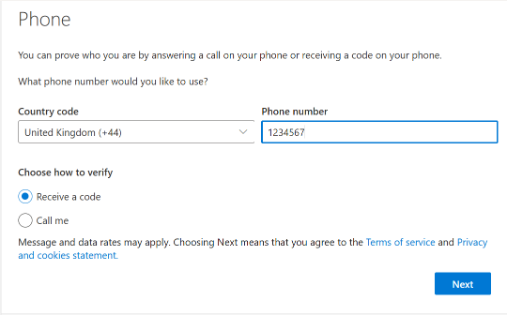
After logging in, follow the prompt to set up MFA and visit the University of Wolverhampton webpage for guidance (this link will open in a new tab). If you have issues with the authenticator app, select “I want to set up a different method,” choose “phone,” and enter your mobile number for a verification code. 
MFA Visual Guide
Step 1: Login to your Microsoft Account via Microsoft Login (this link will open a new page).
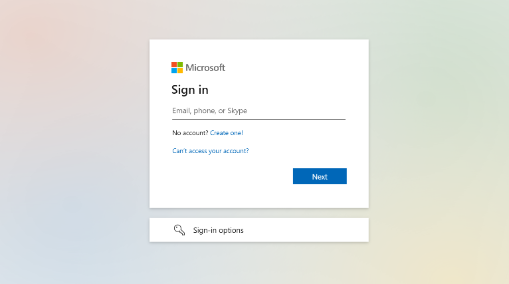
Step 2: Enter your password.
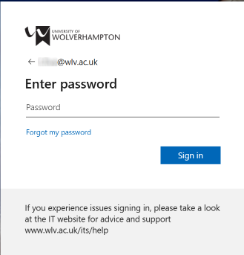
Step 3: Starting your Multi-factor Authentication (MFA) setup.
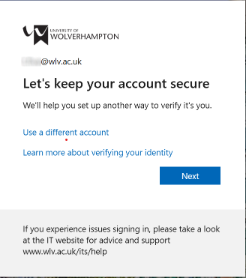
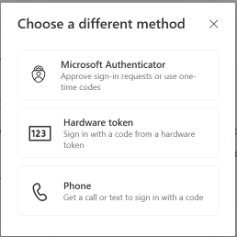
Step 4: We recommend selecting "I want to set up a different method". However, you can use Microsoft Authenticator app if you choose to.
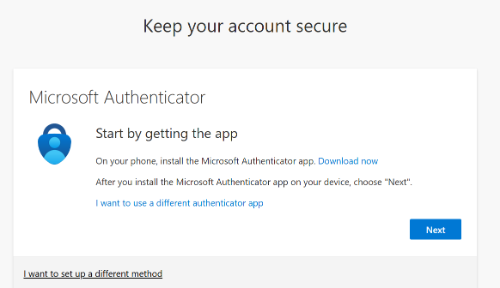
Step 5: Choosing your preferred authentication method.
Step 6: Entering your details and verifying your account.
If you are having any issues with setting up your MFA, please fill in our Support Form (this link will open in a new tab).
Log in to https://canvas.wlv.ac.uk with your University email and password.





Please complete the form below to log IT issues; we will respond within 48 hours.
IT Support Form (this link will open in a new tab).