

/prod01/wlvacuk/media/departments/digital-content-and-communications/submitted-news-images/Mr-Speaker-2.jpeg)
Multifactor authentication (MFA) adds extra security to your University Microsoft 365 account (email, calendar, Teams), the myWLV app, and the Virtual Learning Environment (Canvas). It helps confirm that you are the authorised person trying to access your account. If your password gets stolen/lost and used, with MFA in place on your account, you can be re-assured that your information is safer.
After set-up and initial sign-in, largely MFA will go unnoticed by you as you use your standard device (s), but will kick in if you (or someone else) tries to sign in to your University account from an unknown device/browser or unusual location. MFA will also activate after you change your password or if there are operating system changes to your device.
IMPORTANT! You will need to have set up MFA before you can access your timetable in myWLV app.
ALSO IMPORTANT! Microsoft are removing text/call from the options you can use to authenticate with:
- if a new student or member of staff, please use the Authenticator app as your chosen method. Do not uninstall the app, you will always need it to authenticate!
- if an existing student or member of staff, please follow this guidance to move over to the Authenticator app (you will need to sign in to our IT Knowledge Base).
MFA has two parts to it: protecting your account (MFA), but also providing a password reset mechanism if you get locked out of your account.
How does it work?
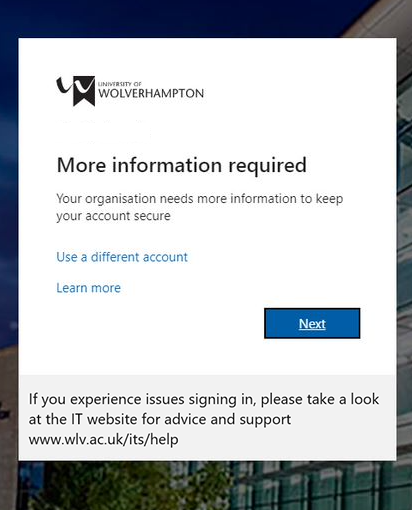
When you first sign in to your University email or try to access Canvas/myWLV, you will see a message on screen saying 'more information required' and a blue 'next' box. After clicking 'next' you will be asked to set up MFA using the Authenticator app.
1. Setting this up using the Authenticator app and your mobile phone
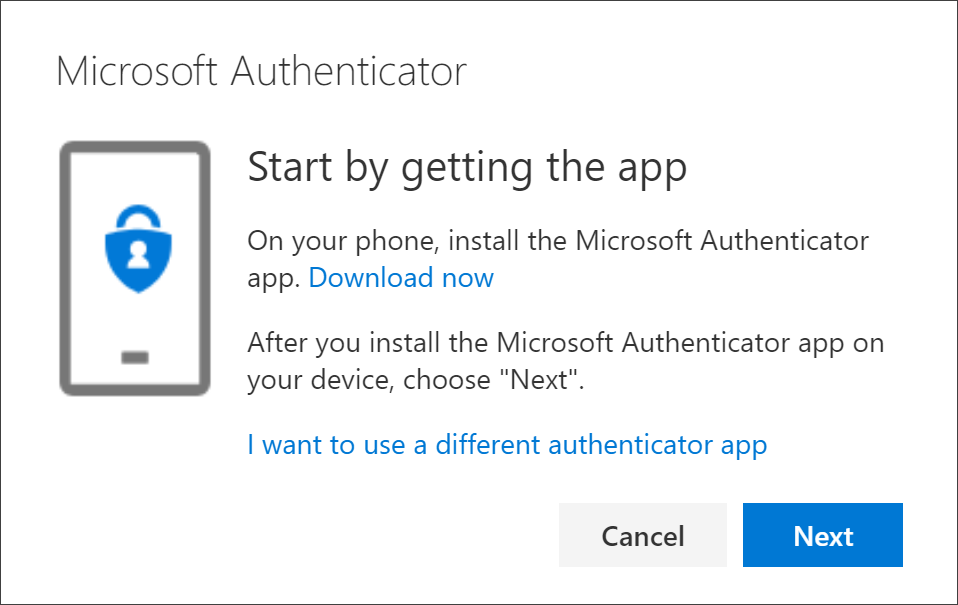
Follow the on-screen prompts to install the Authenticator app (this process is the same as installing any other app). You will need your University email address and password, as well as an internet connection. Do not uninstall the app, you will always need it to authenticate!
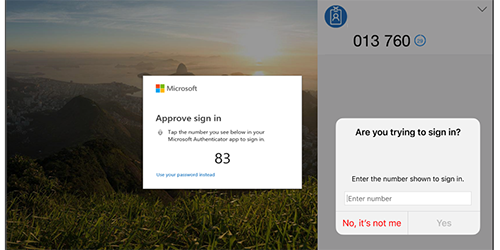
Once you have installed this app and signed in for the first time, when next asked to authenticate you will be presented with numbers on the screen that you need to match (number matching).
For more information about how to download and install the app, see download and install the Microsoft Authenticator app.
Change your verification method at any point
You can check how you receive the MFA authentication by visiting https://myaccount.microsoft.com selecting 'Security Information'.
Using a security key / hardware token
You can purchase and use your own security key (this is like a small USB stick), and set this up as your primary authentication, but not for your initial registration for MFA. Your first set up needs to be the Authenticator app, after which you can move over to a security key.
Using the Outlook app
If you are not using the Authenticator app and have the Outlook app installed on your mobile phone, you can select the Outlook app to authenticate for MFA.