

/prod01/wlvacuk/media/departments/digital-content-and-communications/submitted-news-images/Mr-Speaker-2.jpeg)
Complete your registration with your partner institution before moving onto step 2 and enrolling with the University of Wolverhampton.
You will have been sent a link to e:Vision, in order to start your online enrolment for the University of Wolverhampton. Use this link to access e:Vision directly to your enrolment steps. If you have issues doing this, go to the e:Vision website and select the 'forgotten password' option and follow the enrolment steps.
Once you are into e:Vision, you will see a number of steps required to complete your online enrolment, step one is to create your WLV IT account (and university email address), and the password that you will use for all WLV systems. Please remember this password. Once you have created your IT account, you will be sent your University of Wolverhampton email address.
Advice about what is considered a strong password can be found at wlv.ac.uk/password
Once you have your email address and password, log in to Microsoft Outlook or Canvas with your University email (@wlv.ac.uk) and IT password and follow the on-screen steps to set up Multifactor authentication (MFA). You will need to install the Authenticator app onto your mobile phone.
More at wlv.ac.uk/mfa
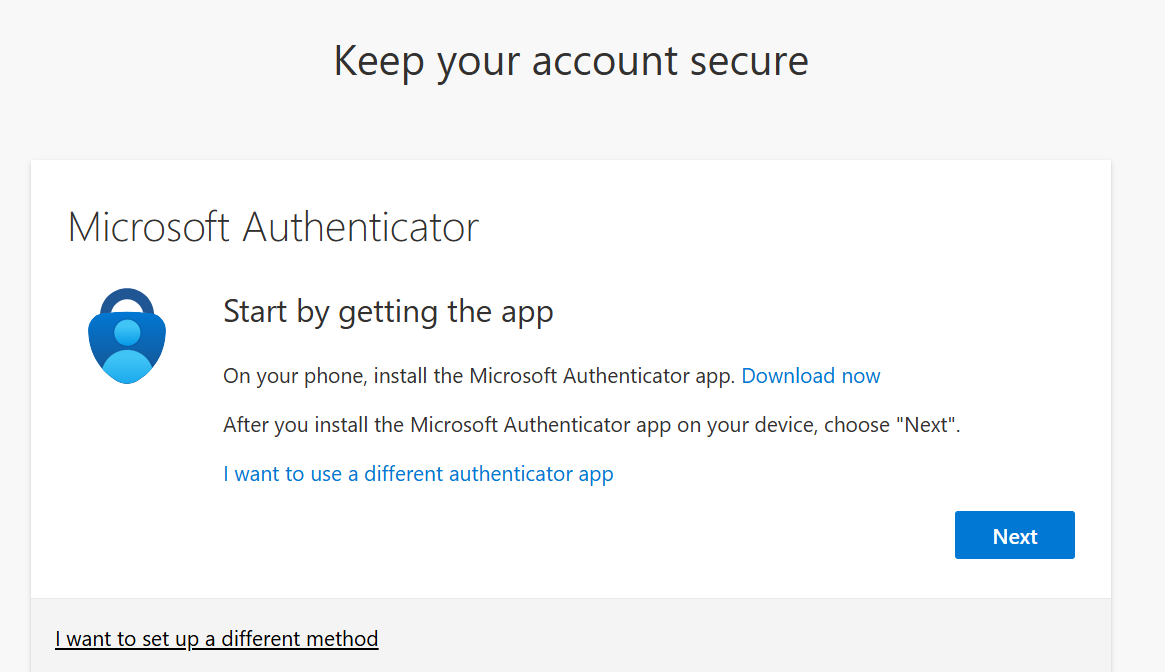
Any issues with MFA, call IT Support on 01902 322000 (we have telephone support 24 hours a day).
Log in to https://canvas.wlv.ac.uk with your University email and password. You will be prompted to authenticate using Multifactor authentication.
For access issues, log a call using e:Vision (this link will open in a new tab).
Please complete the form below to log IT issues; we will respond within 48 hours.
IT Support Form (this link will open in a new tab).